Application keys
PhoenixAI Cloud allows you to generate keys for use with the PhoenixAI Cloud API and the PhoenixAI Cloud provider on Terraform. The PhoenixAI Cloud API helps you automate processes that would otherwise be performed through the user interface.
In addition to application keys, PhoenixAI also supports access control to these services with service account, which are independent identities that do not depend on any PhoenixAI members. For more information, see Service account.
Create an application key
-
Sign in to the PhoenixAI Cloud console
-
In the left-side navigation pane, choose Application keys.
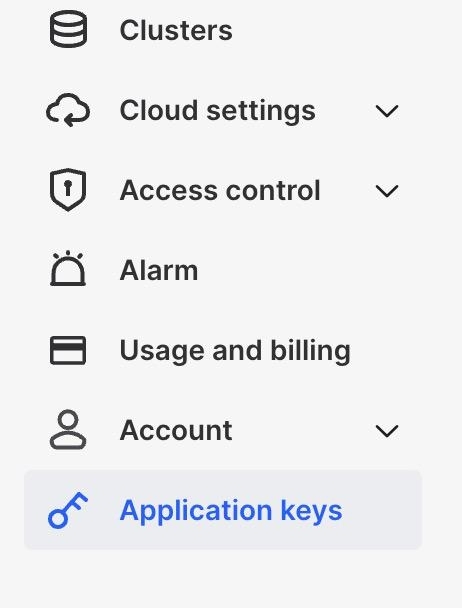
-
On the Application keys page, click New secret.
-
In the dialog box that appears, optionally enter a description, and then click Generate now to generate an application key.
NOTE
To facilitate the management of your application key, we recommend that you enter a description when creating a new application key.
-
Copy the Secret and Client ID of the application key and save them to a location that you can access later.
NOTE
The Secret can be viewed only when the application key is created. Make sure that you copy and save the Secret before closing the dialog box.
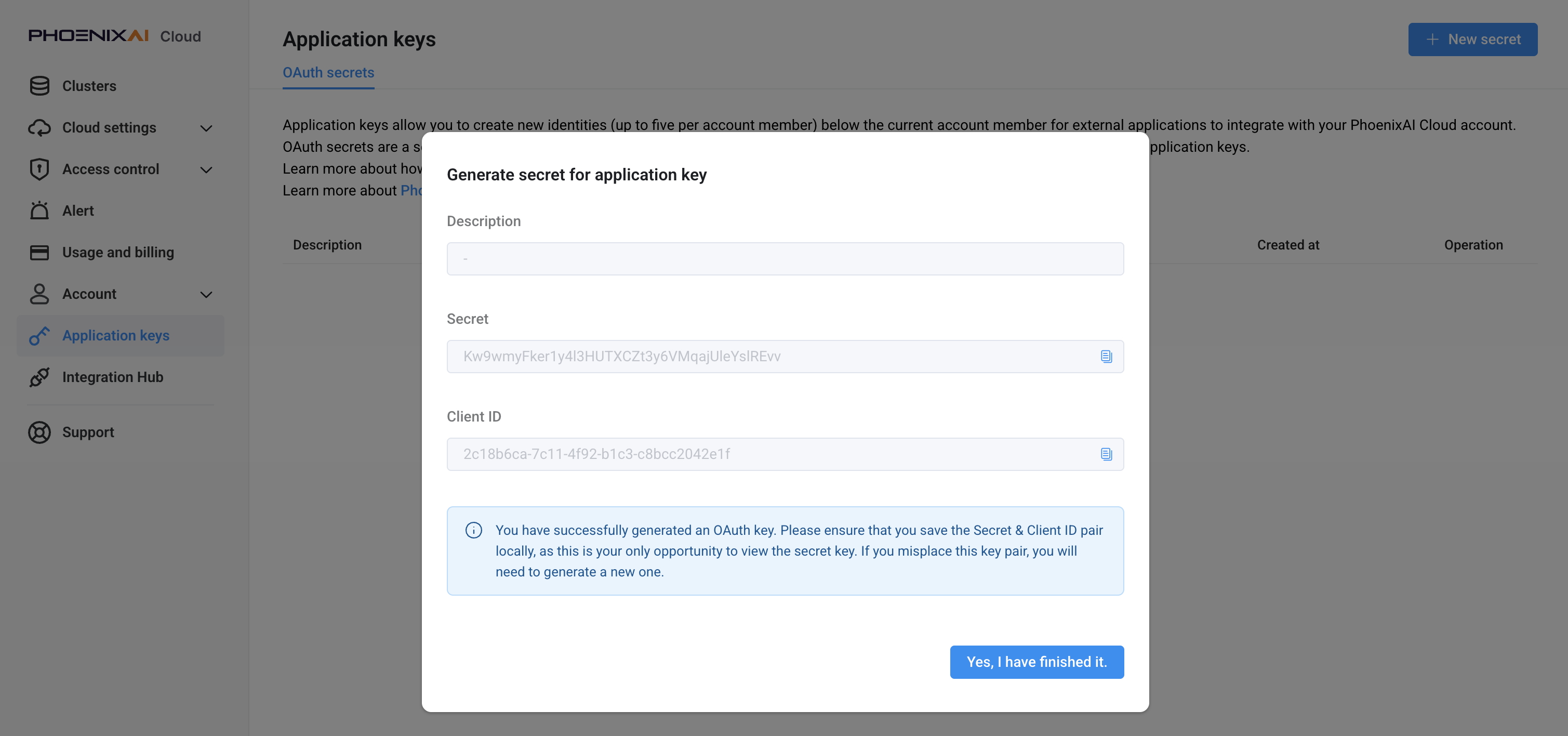
-
Click OK, I have copied it to close the dialog box.
View an application key
-
Sign in to the PhoenixAI Cloud console.
-
In the left-side navigation pane, choose Application keys.
-
On the Application keys page, view the following information about the application keys created within your account, sorted by creation time:
Field Description Description An optional field, which is displayed only if you have specified a description when creating the application key. If you did not specify a description, the description of the key will display as -. Client ID A unique identifier generated within your PhoenixAI cloud account to identify the application key. Created at The date and time at which the application key was created.
NOTE
The account currently logged in to the PhoenixAI Cloud console can only view the application keys created by that account.
Delete an application key
-
Sign in to the PhoenixAI Cloud console.
-
In the left-side navigation pane, choose Application keys.
-
On the Application keys page, find the application key you want to delete, and click the delete icon to the right of the Created at column for the key.
-
In the message that appears, click Confirm.
CAUTION
After you delete an application key, you can no longer use it to access the PhoenixAI Cloud API or the PhoenixAI Cloud provider on Terraform.