Alert
The alert system of PhoenixAI Cloud can monitor clusters' status and send notifications according to the alert policies that you configure.
Only members that are bound to a role with the Configure alert privilege can configure alert policies. For information about how to grant role-specific privileges and how to bind a role to a specific member, see Modify privileges for a role and Assign a role to a member.
Create an alert policy
-
Sign in to the PhoenixAI Cloud console.
-
Choose Alert from the left-side navigation pane.
-
On the Alert policy page, click Create new policy.
-
On the Create your new alert policy page, configure the parameters and click Create.
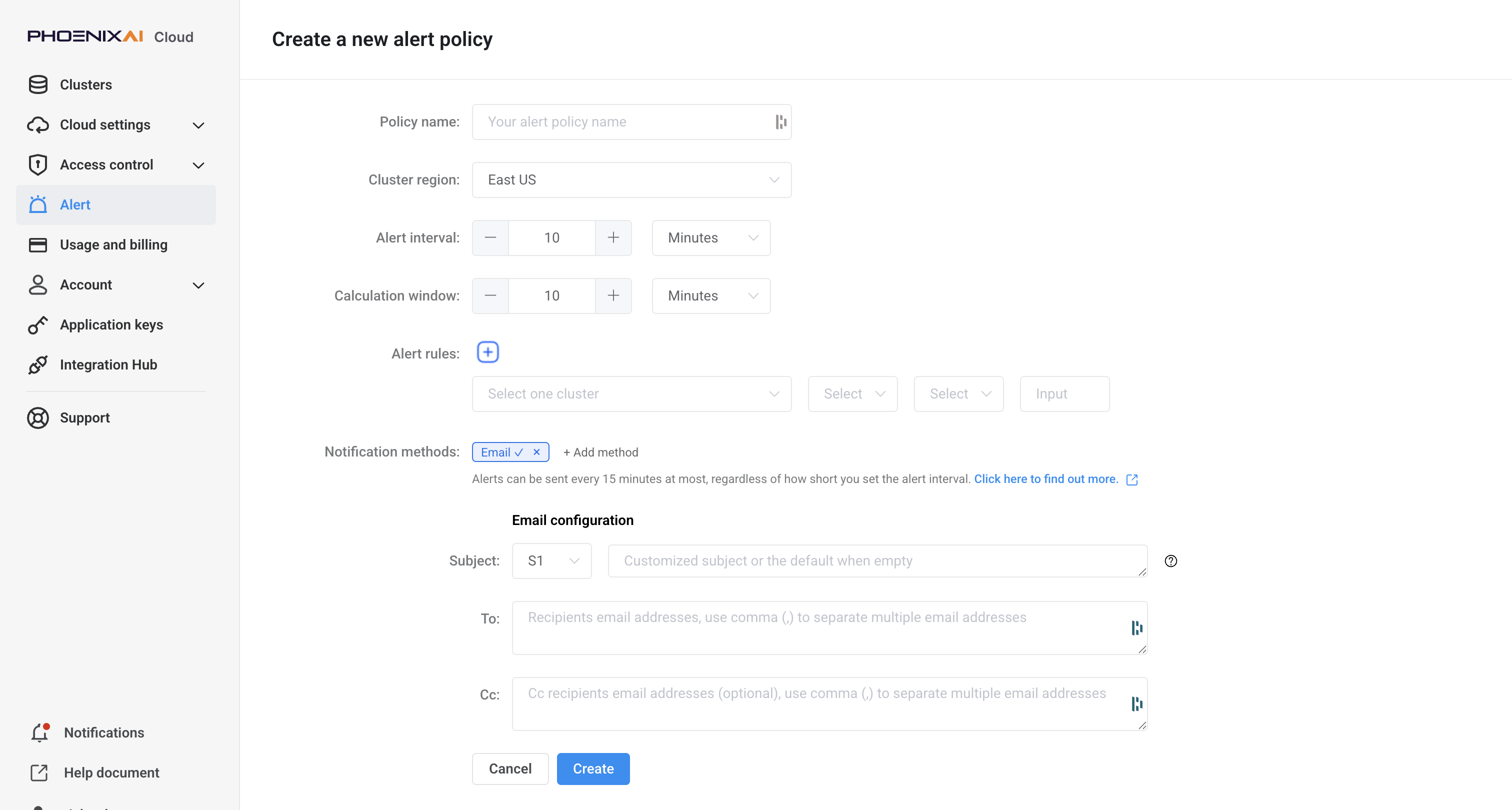
Follow these steps to configure the parameters:
a. For Policy name, enter a policy name.
b. For Cluster region, select a region.
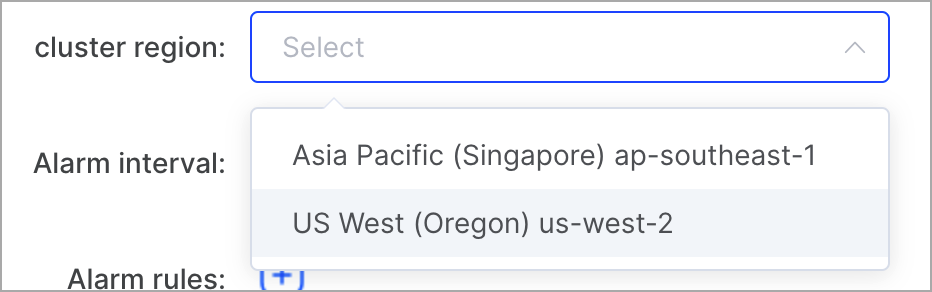 note
noteThe PhoenixAI clusters displayed in the drop-down list below the plus sign (+) in Alert rules vary depending on the region that you select. You can configure alert rules only for the PhoenixAI clusters that reside in the selected region.
c. For Alert interval, select an interval at which you want to receive alerts.
Alerts can be sent at a 15-minute interval at most. If you configure an interval shorter than 15 minutes, emails will be sent at most every 15 minutes even when the alert policy is triggered more frequently than once every 15 minutes. Additionally, only the alert records of which you are notified through emails will be recorded.
d. For Alert rules, click the plus sign (+) to add an alert rule.
In the drop-down list right below the plus sign (+), you need to select a PhoenixAI cluster and then a metric to configure an alert rule.
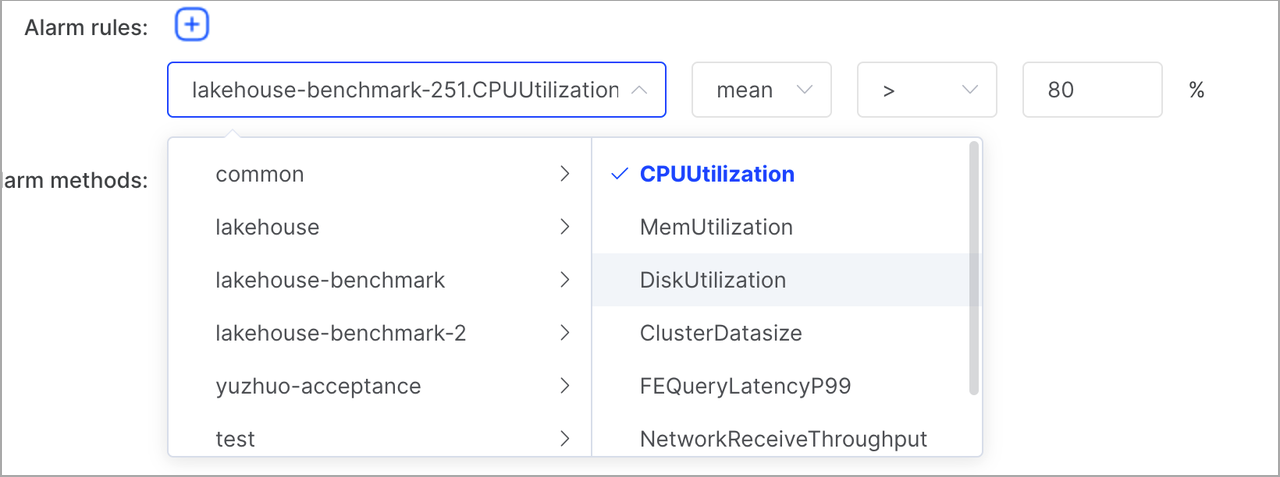
You can add multiple rules to a policy. These rules are in an OR relationship, meaning that alerts are sent whichever rule is triggered.
PhoenixAI supports the following metrics.
Metric Description CPUUtilization The CPU utilization of the cluster. Unit: percent. MemUtilization The memory usage of the cluster. Unit: percent. DiskUtilization The disk usage of the cluster. Unit: percent. ClusterDatasize The size of occupied storage. Unit: GB. FEQueryLatencyP99 The 99th percentile of query latencies in FEs. Unit: milliseconds. NetworkReceiveThroughput The rate at which the cluster receives data. Unit: bytes/s. NetworkTransmitThroughput: The rate at which the cluster writes data. Unit: bytes/s. e. For Alert methods, you can choose Email or PagerDuty integrations.
- For Email, optionally customize the email subject, specify your email address in the To: field, and optionally specify the email addresses to which you want to send the carbon copy.
- For PagerDuty integrations, select the PagerDuty severity.
View alert policies
-
Sign in to the PhoenixAI Cloud console.
-
Choose Alert from the left-side navigation pane.
-
On the Alert policy page, view the alert policies that are created within your PhoenixAI cloud account.
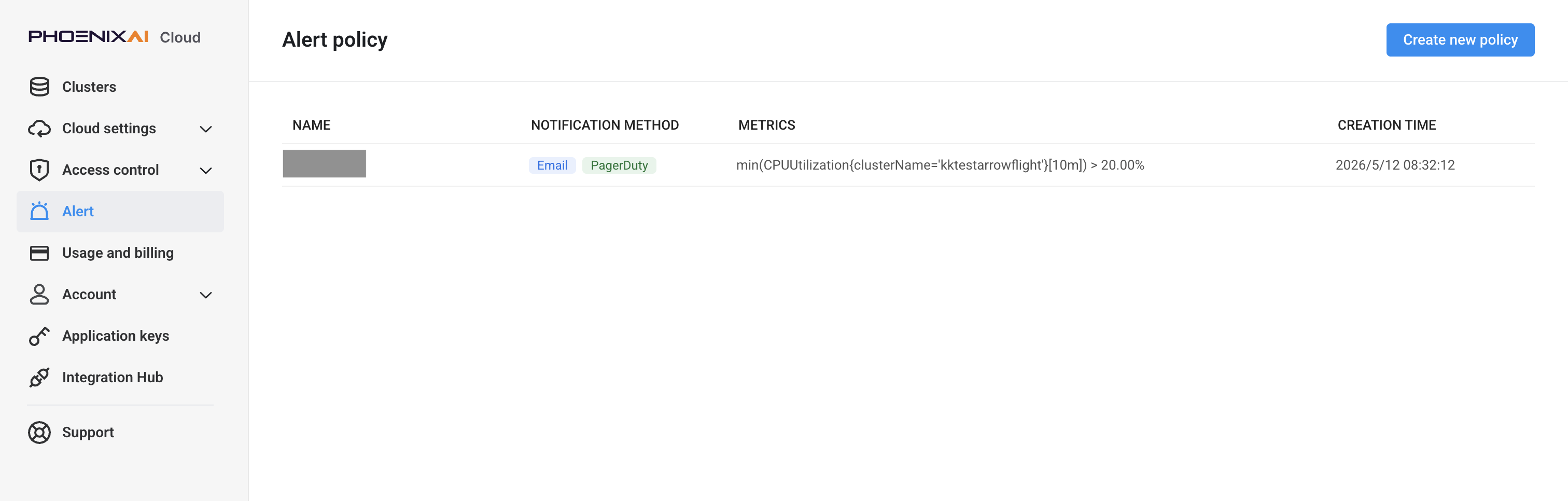
You can click an alert policy to view the details about it. The policy details are displayed on two tabs: Overview and Records.
-
The Overview tab displays the basic information about the policy, such as the name, alert interval, and alert rules.
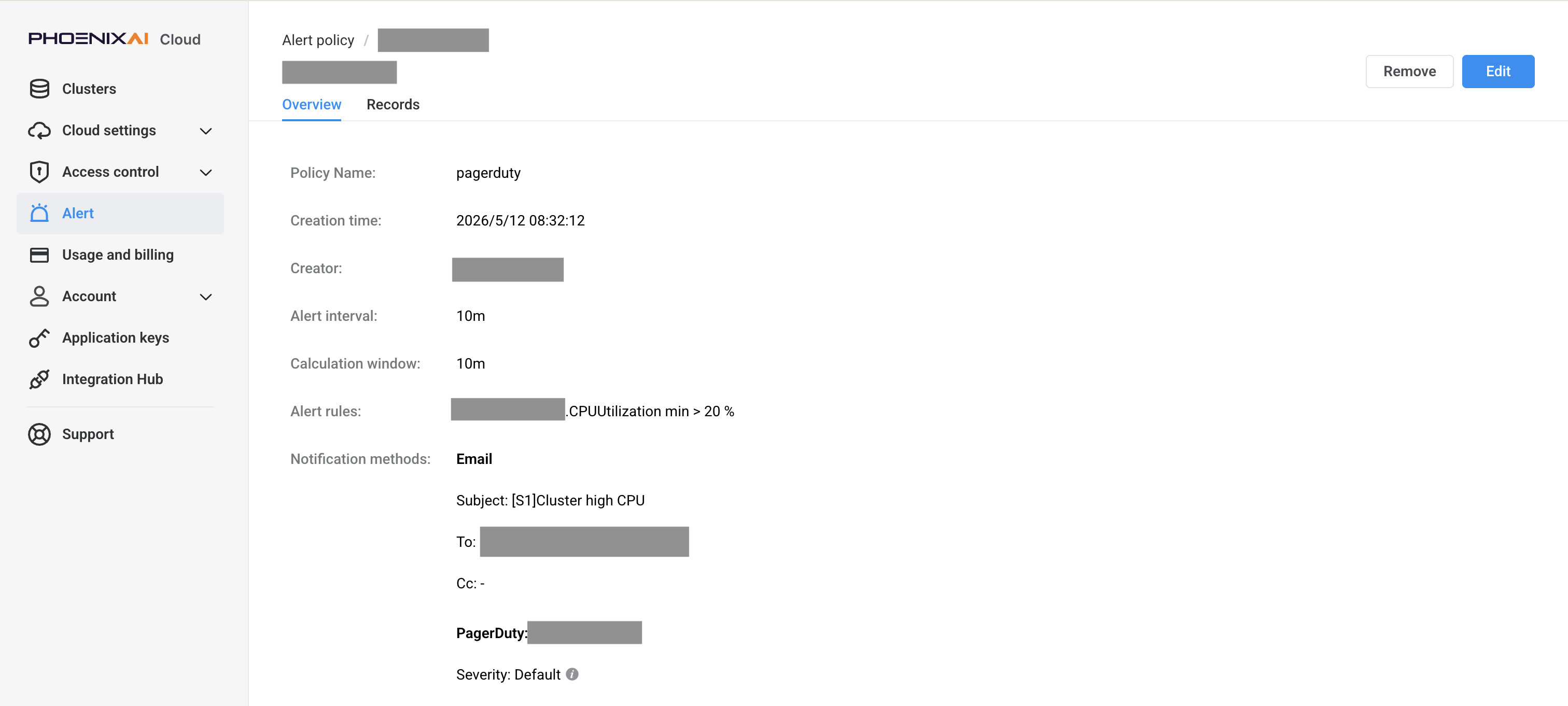
-
The Records tab displays the information about at which time each rule was triggered.

-
Edit an alert policy
-
Sign in to the PhoenixAI Cloud console.
-
Choose Alert from the left-side navigation pane.
-
On the Alert policy page, click the alert policy that you want to edit.
-
On the policy details page, click Edit.
-
Edit the alert policy and click Confirm.
noteThe policy name cannot be modified. Additionally, if nothing is changed, you cannot click Confirm and can only click Cancel.
Remove an alert policy
- Sign in to the PhoenixAI Cloud console.
- Choose Alert from the left-side navigation pane.
- On the Alert policy page, click the alert policy that you want to edit.
- On the policy details page, click Remove.
- In the message that appears, click Confirm.