Load data from a local file system
PhoenixAI allows you to load data from a local file system by using Stream Load.
Stream Load is suitable for loading of data less than 10 GB from a local file system.
Supported file formats are CSV and JSON.
For CSV data, take note of the following points:
- You can use a UTF-8 string, such as a comma (,), tab, or pipe (|), whose length does not exceed 50 bytes as a text delimiter.
- Null values are denoted by using
\N. For example, a data file consists of three columns, and a record from that data file holds data in the first and third columns but no data in the second column. In this situation, you need to use\Nin the second column to denote a null value. This means the record must be compiled asa,\N,binstead ofa,,b.a,,bdenotes that the second column of the record holds an empty string.
Stream Load supports data transformation at data loading and supports data changes made by UPSERT and DELETE operations during data loading. For more information, see Change data through loading.
Before you begin
Stream Load accepts a Bearer token as well as a username and password, if a JWT or OAuth 2.0 security integration is configured: send -H "Authorization: Bearer <token>" instead of -u <username>:<password>. The token must still be valid when the load commits, so use one with enough lifetime for a long load. See Where each authentication method works.
Check privileges
You can load data into StarRocks tables only as a user who has the INSERT privilege on those StarRocks tables. If you do not have the INSERT privilege, follow the instructions provided in GRANT to grant the INSERT privilege to the user that you use to connect to your StarRocks cluster. The syntax is GRANT INSERT ON TABLE <table_name> IN DATABASE <database_name> TO { ROLE <role_name> | USER <user_identity>}.
Check network configuration
Make sure that the security group of your cluster allows inbound HTTPS traffic from the machine on which the data you want to load resides. For more information, see Create a security group (AWS) and Create a virtual network, a subnet, and a security group for PhoenixAI on Azure (Azure).
Loading from a local file system via Stream Load
Stream Load is an HTTP PUT-based synchronous loading method. After you submit a load job, StarRocks synchronously runs the job, and returns the result of the job after the job finishes. You can determine whether the job is successful based on the job result.
NOTICE
After you load data into a StarRocks table by using Stream Load, the data of the materialized views that are created on that table is also updated.
Limits
Stream Load does not support loading the data of a CSV file that contains a JSON-formatted column.
Typical example
This section uses curl as an example to describe how to load the data of a CSV or JSON file from your local file system into StarRocks. For detailed syntax and parameter descriptions, see STREAM LOAD.
Note that in StarRocks some literals are used as reserved keywords by the SQL language. Do not directly use these keywords in SQL statements. If you want to use such a keyword in an SQL statement, enclose it in a pair of backticks (`). See Keywords.
If the destination cluster is an elastic cluster, you can add the warehouse header, as in -H "warehouse:<warehouse_name>", to specify the warehouse to use. If you do not specify this header, the default warehouse named default_warehouse is used for the data loading. Make sure the destination warehouse is running. If the destination warehouse is not running, the data loading will fail.
Replace <table_url_prefix> in the following examples with https://<fe_host>.
Load CSV data
Prepare datasets
In your local file system, create a CSV file named example1.csv. The file consists of three columns, which represent the user ID, user name, and user score in sequence.
1,Lily,23
2,Rose,23
3,Alice,24
4,Julia,25
Create a database and a table
Create a database and switch to it:
CREATE DATABASE IF NOT EXISTS mydatabase;
USE mydatabase;
Create a Primary Key table named table1. The table consists of three columns: id, name, and score, of which id is the primary key.
CREATE TABLE `table1`
(
    `id` int(11) NOT NULL COMMENT "user ID",
    `name` varchar(65533) NULL COMMENT "user name",
    `score` int(11) NOT NULL COMMENT "user score"
)
ENGINE=OLAP
PRIMARY KEY(`id`)
DISTRIBUTED BY HASH(`id`);
Since v2.5.7, StarRocks can automatically set the number of buckets (BUCKETS) when you create a table or add a partition. You no longer need to manually set the number of buckets. For detailed information, see set the number of buckets.
Start a Stream Load
Run the following command to load the data of example1.csv into table1:
curl --location-trusted -u <username>:<password> -H "label:123" \
    -H "Expect:100-continue" \
    -H "column_separator:," \
    -H "columns: id, name, score" \
    -T example1.csv -XPUT \
    <table_url_prefix>/api/mydatabase/table1/_stream_load
<fe_host> is the public or private endpoint of the cluster. You can open the Overview page of the cluster in the PhoenixAI Cloud console and navigate to the Connection section to find and copy the endpoint.
example1.csv consists of three columns, which are separated by commas (,) and can be mapped in sequence onto the id, name, and score columns of table1. Therefore, you need to use the column_separator parameter to specify the comma (,) as the column separator. You also need to use the columns parameter to temporarily name the three columns of example1.csv as id, name, and score, which are mapped in sequence onto the three columns of table1.
After the load is complete, you can query table1 to verify that the load is successful:
SELECT * FROM table1;
+------+-------+-------+
| id   | name  | score |
+------+-------+-------+
|    1 | Lily  |    23 |
|    2 | Rose  |    23 |
|    3 | Alice |    24 |
|    4 | Julia |    25 |
+------+-------+-------+
4 rows in set (0.00 sec)
Load JSON data
Since v3.2.7, Stream Load supports compressing JSON data during transmission, reducing network bandwidth overhead. Users can specify different compression algorithms using parameters compression and Content-Encoding. Supported compression algorithms including GZIP, BZIP2, LZ4_FRAME, and ZSTD. For the syntax, see STREAM LOAD.
Prepare datasets
In your local file system, create a JSON file named example2.json. The file consists of two columns, which represent city ID and city name in sequence.
{"name": "Beijing", "code": 2}
Create a database and a table
Create a database and switch to it:
CREATE DATABASE IF NOT EXISTS mydatabase;
USE mydatabase;
Create a Primary Key table named table2. The table consists of two columns: id and city, of which id is the primary key.
CREATE TABLE `table2`
(
    `id` int(11) NOT NULL COMMENT "city ID",
    `city` varchar(65533) NULL COMMENT "city name"
)
ENGINE=OLAP
PRIMARY KEY(`id`)
DISTRIBUTED BY HASH(`id`);
Since v2.5.7, StarRocks can set the number of(BUCKETS) automatically when you create a table or add a partition. You no longer need to manually set the number of buckets. For detailed information, see set the number of buckets.
Start a Stream Load
Run the following command to load the data of example2.json into table2:
curl -v --location-trusted -u <username>:<password> -H "strict_mode: true" \
    -H "Expect:100-continue" \
    -H "format: json" -H "jsonpaths: [\"$.name\", \"$.code\"]" \
    -H "columns: city,tmp_id, id = tmp_id * 100" \
    -T example2.json -XPUT \
    <table_url_prefix>/api/mydatabase/table2/_stream_load
<fe_host> is the public or private endpoint of the cluster. You can open the Overview page of the cluster in the PhoenixAI Cloud console and navigate to the Connection section to find and copy the endpoint.
example2.json consists of two keys, name and code, which are mapped onto the id and city columns of table2, as shown in the following figure.
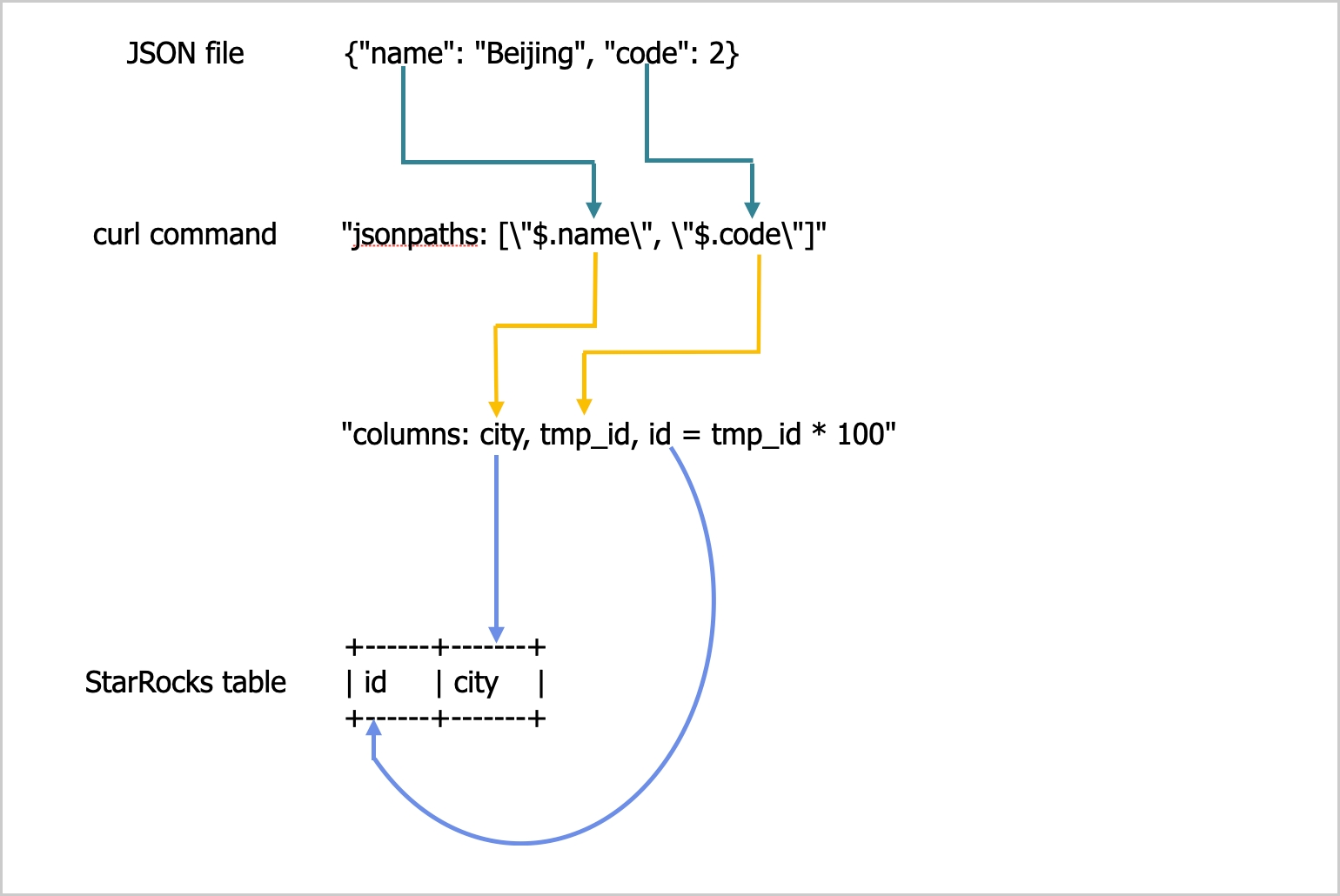
The mappings shown in the preceding figure are described as follows:
-
StarRocks extracts the
nameandcodekeys ofexample2.jsonand maps them onto thenameandcodefields declared in thejsonpathsparameter. -
StarRocks extracts the
nameandcodefields declared in thejsonpathsparameter and maps them in sequence onto thecityandtmp_idfields declared in thecolumnsparameter. -
StarRocks extracts the
cityandtmp_idfields declared in thecolumnsparameter and maps them by name onto thecityandidcolumns oftable2.
In the preceding example, the value of code in example2.json is multiplied by 100 before it is loaded into the id column of table2.
For detailed mappings between jsonpaths, columns, and the columns of the StarRocks table, see the "Column mappings" section in STREAM LOAD.
After the load is complete, you can query table2 to verify that the load is successful:
SELECT * FROM table2;
+------+--------+
| id   | city   |
+------+--------+
| 200  | Beijing|
+------+--------+
1 row in set (0.01 sec)
Merge Stream Load requests
From v3.4.0, the system supports merging multiple Stream Load requests.
Note that the Merge Commit optimization is suitable for the scenario with concurrent Stream Load jobs on a single table. It is not recommended if the concurrency is one. Meanwhile, think twice before setting merge_commit_async to false and merge_commit_interval_ms to a large value because they may cause load performance degradation.
Merge Commit is an optimization for Stream Load, designed for high concurrency, small-batch (from KB to tens of MB) real-time loading scenarios. In earlier versions, each Stream Load request would generate a transaction and a data version, which led to the following issues in high concurrency loading scenarios:
- Excessive data versions impact query performance, and limiting the number of versions may cause
too many versionserrors. - Data version merging through Compaction increases resource consumption.
- It generates small files, increasing IOPS and I/O latency. And in shared-data clusters, this also raises cloud object storage costs.
- Leader FE node, as the transaction manager, may become a single point of bottleneck.
Merge Commit mitigates these issues by merging multiple concurrent Stream Load requests within a time window into a single transaction. This reduces the number of transactions and versions generated by high concurrency requests, thereby improving loading performance.
Merge Commit supports both synchronous and asynchronous modes. Each mode has advantages and disadvantages. You can choose based on your use cases.
-
Synchronous mode
The server returns only after the merged transaction is committed, ensuring the loading is successful and visible.
-
Asynchronous mode
The server returns immediately after receiving the data. This mode does not ensure the loading is successful.
| Mode | Advantages | Disadvantages |
|---|---|---|
| Synchronous |
| Each loading request from the client is blocked until the server closes the merge window. It may reduce the data processing capability of a single client if the window is excessively large. |
| Asynchronous | Allows a single client to send subsequent loading requests without waiting for the server to close the merge window, improving loading throughput. |
|
Start a Stream Load
-
Run the following command to start a Stream Load job with Merge Commit enabled in synchronous mode, and set the merging window to
5000milliseconds and degree of parallelism to2:curl --location-trusted -u <username>:<password> \-H "Expect:100-continue" \-H "column_separator:," \-H "columns: id, name, score" \-H "enable_merge_commit:true" \-H "merge_commit_interval_ms:5000" \-H "merge_commit_parallel:2" \-T example1.csv -XPUT \<table_url_prefix>/api/mydatabase/table1/_stream_load -
Run the following command to start a Stream Load job with Merge Commit enabled in asynchronous mode, and set the merging window to
60000milliseconds and degree of parallelism to2:curl --location-trusted -u <username>:<password> \-H "Expect:100-continue" \-H "column_separator:," \-H "columns: id, name, score" \-H "enable_merge_commit:true" \-H "merge_commit_async:true" \-H "merge_commit_interval_ms:60000" \-H "merge_commit_parallel:2" \-T example1.csv -XPUT \<table_url_prefix>/api/mydatabase/table1/_stream_load
- Merge Commit only supports merging homogeneous loading requests into a single database and table. "Homogeneous" indicates that the Stream Load parameters are identical, including: common parameters, JSON format parameters, CSV format parameters,
opt_properties, and Merge Commit parameters. - For loading CSV-formatted data, you must ensure that each row ends with a line separator.
skip_headeris not supported. - The server automatically generates labels for transactions. They will be ignored if specified.
- Merge Commit merges multiple loading requests into a single transaction. If one request contains data quality issues, all requests in the transaction will fail.
Check Stream Load progress
After a load job is complete, StarRocks returns the result of the job in JSON format. For more information, see the "Return value" section in STREAM LOAD.
Stream Load does not allow you to query the result of a load job by using the SHOW LOAD statement.
Cancel a Stream Load job
Stream Load does not allow you to cancel a load job. If a load job times out or encounters errors, StarRocks automatically cancels the job.
File size and timeout
Stream Load is suitable for loading of data less than 10 GB from a local file system. If the size of a data file exceeds 10 GB, we recommend that you split the data file into small files that each are less than 10 GB in size and then load these files one by one.
When you load the data of a JSON file, take note of the following points:
-
The size of each JSON object in the file cannot exceed 4 GB. If any JSON object in the file exceeds 4 GB, StarRocks throws an error "This parser can't support a document that big."
-
By default, the JSON body in an HTTP request cannot exceed 100 MB. If the JSON body exceeds 100 MB, StarRocks throws an error "The size of this batch exceed the max size [104857600] of json type data data [8617627793]. Set ignore_json_size to skip check, although it may lead huge memory consuming." To prevent this error, you can add
"ignore_json_size:true"in the HTTP request header to ignore the check on the JSON body size.
If many of the load jobs that you create time out, use the timeout parameter of Stream Load to specify a longer timeout period for each load job. For more information, see STREAM LOAD. Set the timeout period based on the calculation result that you obtain from the following formula:
Timeout period of each load job > Amount of data to be loaded/Average loading speed
For example, if the size of the data file that you want to load is 10 GB and the average loading speed of your cluster is 100 MB/s, set the timeout period to more than 100 seconds.
Usage notes
If a field is missing for a record in the data file you want to load and the column onto which the field is mapped in your StarRocks table allows NULL values, StarRocks automatically fills a NULL value in the mapping column of your StarRocks table during the load of the record. You can also use the ifnull() function to specify the default value that you want to fill.
For example, if the field that represents city ID in the preceding example2.json file is missing and you want to fill an x value in the mapping column of table2, you can specify "columns: city, tmp_id, id = ifnull(tmp_id, 'x')".