Least Privilege for Azure Deployment
The conventional deployment procedure for Azure-based clusters is designed for efficiency while managing cloud privileges on a coarse granularity. It associates all cloud resources to a dedicated resource group, and assigns permissions on the resource group level, which are more extensive than necessary.
To streamline compliance and audits, you can opt to abide by the principle of least privilege (PoLP), and give PhoenixAI only the narrowest permissions by granting access to each resource on a case-by-case basis.
Granting least privilege when creating Azure resources
To grant least privilege while creating necessary resources in Azure, you do not need to associate each resource to a dedicated resource group. You can choose any resource group for the resource when the conventional deployment procedure suggests using the resource group created for the deployment. Instead, you need to add different role assignments to each resource.
This section uses storage account as an example to show how to add only necessary role assignments to an Azure resource. Procedures are similar for other resources. For the role assignments that each resource requires and their grantees, see Necessary role assignments per resource.
The following steps grant the Reader role assignment of the storage account to the service principal used for deployment:
-
Navigate to the Storage accounts service page, and click the storage account you want to use (or navigate to the overview page of any resource you want to add role assignments to).
-
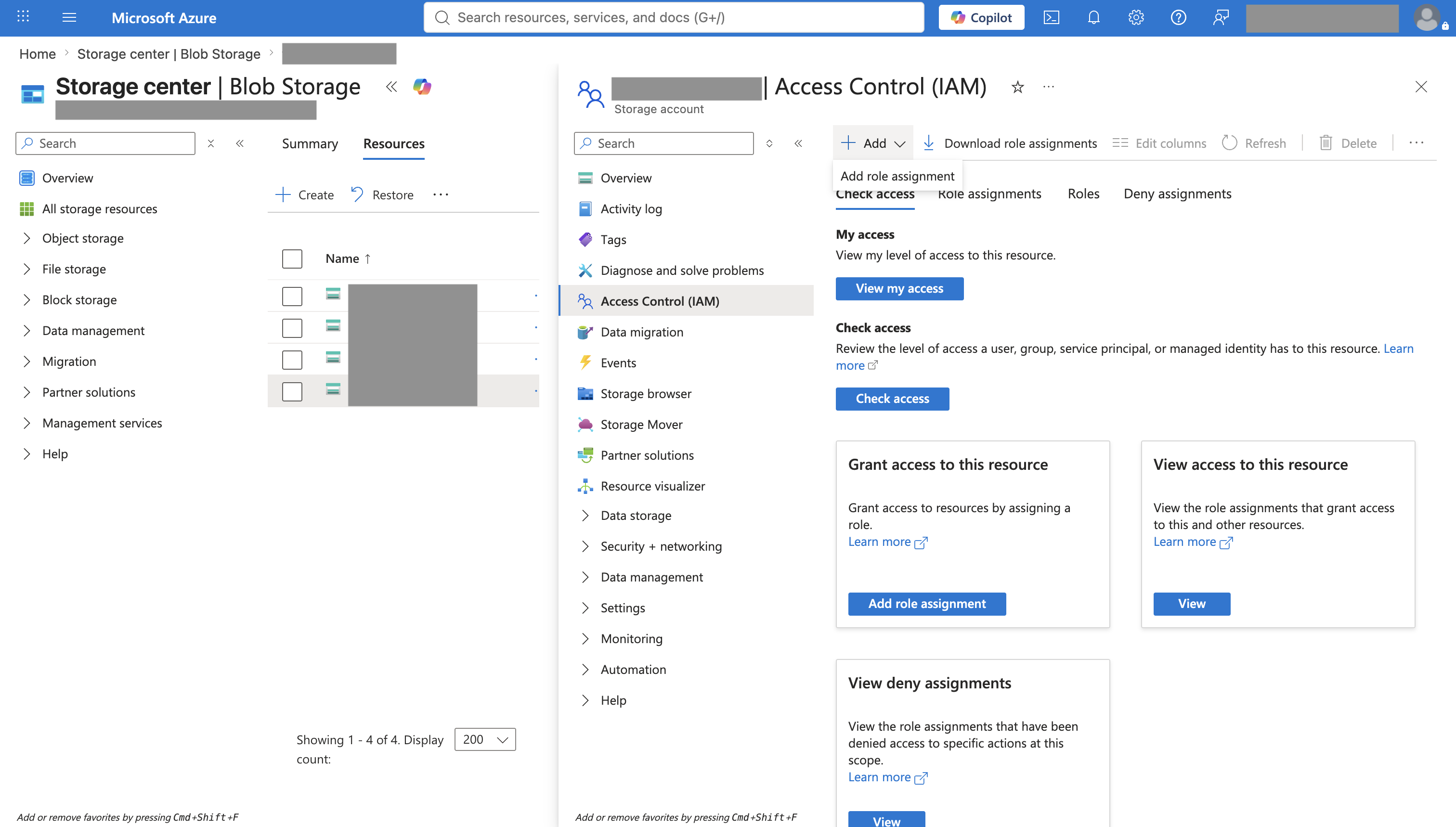
On the page that appears, choose Access Control (IAM) in the left-side pane, click Add, and then click Add role assignment.
-
In the Job function roles tab of the Add role assignment page, select Reader, and click Next to continue.
-
On the Members tab, select User, group, or service principal for Assign access to (or Managed identity if the grantee is the managed identity).
-
For Members, click Select members. In the right-side pane that appears, search for and select the application you registered for the deployment, and click Select.
-
Click Review + assign, and, on the Review + assign tab, review the information you have filled. Then, click Review + assign to add the assignment.
Necessary role assignments per resource
| Resource | Role assignment | Grantee |
|---|---|---|
| Subnet (or Virtual Network if you use Azure Portal) | Reader | Service principal |
| Subnet (or Virtual Network if you use Azure Portal) | Network Contributor | |
| Network Security Group | Reader | |
| Storage Account | Reader | |
| Private Endpoint | Reader | |
| Managed Identity | Reader | |
| Managed Identity | Managed Identity Operator | |
| SSH Key Pair | Reader | |
| Resource Group (for launching compute resources) | Network Contributor | |
| Resource Group (for launching compute resources) | Virtual Machine Contributor | |
| Resource Group (for launching compute resources) | Reader | Managed Identity |
| Storage Account | Storage Account Contributor | |
| Container | Storage Blob Data Contributor |
- If you use a separate resource group for the storage account, you must specify the Storage Account ID in the Storage account name or ID. An error will be returned if the storage account name is specified in this case.
- From Azure Portal, you can only grant roles on the Virtual Network level. If you want to grant roles on the Subnet level, you must use Azure CLI to create these resources.